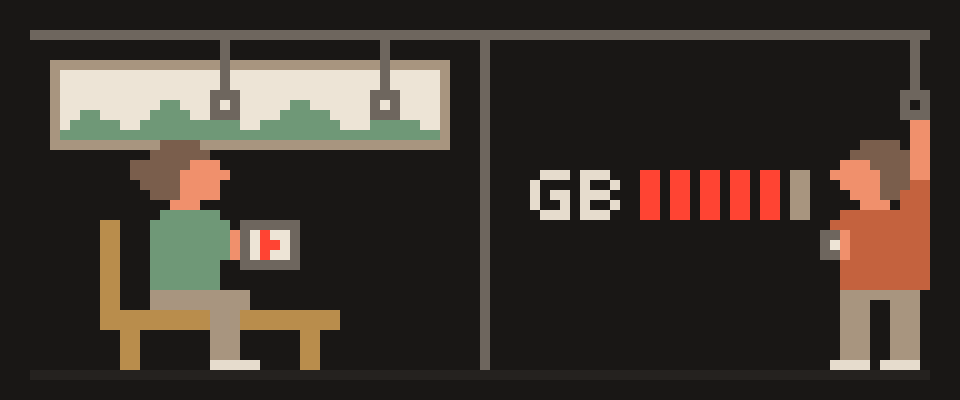
The quickest way to test internet speed is in the browser: open the 404 VPN speed test, press "Measure speed" and wait about ten seconds.
You get three numbers: download speed in megabits per second, ping and jitter in milliseconds. Nothing to install, no account, and it works on a phone as well as a laptop.
A single run, though, isn't enough to draw conclusions. This guide explains what each number means, how to measure so the result is fair, why two services show different figures for the same line, and what to do when the speed is well below what your plan promises.
download   Mbps   how much fits
ping       ms     delay to answer
jitter     ms     how steady it is
    └─ for calls ping matters more
       than megabits
What an internet speed test measures
Download speed. How many megabits per second reach you from the server. It's the number that matters for video, web pages, updates and file downloads. The speed test downloads test data for a few seconds and divides the amount received by the time it took.
Ping (how long a reply takes). How long a short request takes to reach the server and come back, in milliseconds. Ping isn't about downloading fast, it's about answering fast: it decides how snappy calls, games and page loads with dozens of small requests feel.
Jitter. How much the ping varies between consecutive requests. If one reply takes 20 ms and the next 80 ms, the connection is unsteady. Downloads don't care, but voice and video do: you hear stutter and see the picture fall apart. Microsoft's network requirements for Teams treat jitter up to 30 ms as acceptable.
No upload test. Ours is deliberately light and has no server-side component. If you need to check upload speed, for example before streaming, use a service with a full upload test.
download   how fast bytes reach you
upload     how fast they leave
latency    how long a reply takes
jitter     how steady that is
   └─ calls and games live on the
      last two, not the first
Whether the number you get is enough depends on what you do with it: what internet speed do I need.
How to test internet speed properly
- Kill everything that downloads. Your updates, torrents, cloud sync and that video in another tab are all sharing the line with the test.
- Use a cable if you can. Wi-Fi through two walls easily halves the speed. No cable? Move next to the router.
- Run it two or three times. A single run can land on a burst of traffic, so go by the typical result, not your best one.
- Compare morning and evening. In the evening your provider's link is shared by everyone in the building, and a dip at that time is normal rather than a fault.
- Test your phone and your laptop separately. An old phone or Wi-Fi adapter is perfectly capable of being the bottleneck by itself.
[ ] wired, or right next to router
[ ] close downloads and video
[ ] three runs, take the middle
[ ] same test server each time
[ ] same time of day
Why speed test results differ
Speedtest, Fast.com and our tool will rarely agree to the megabit, and that isn't a bug. Four things differ.
- Where the server is. Our server is in Amsterdam; the farther you are, the higher the ping. Services with a server network pick the nearest one, sometimes in your own city.
- How many streams. Big tests download over several parallel connections and squeeze the line to its limit. Ours uses a single stream, like an ordinary file download in a browser.
- How long. For the first few seconds a connection is still ramping up (that's just how TCP works), so a short test reports less than a long one.
- What is reported. Some show a peak, some an average. Our test shows the average over the whole run and the current speed while it runs.
If your question is "can my line handle HD video and calls", any test will do. If you're comparing two connections, use the same test on both or you're comparing nothing.
different measurement servers
different number of streams
different time of day
Wi-Fi instead of cable
   └─ only compare your own runs
      against your own runs
Mbps vs MB/s: megabits and megabytes
Providers sell speed in megabits per second (Mbps); browsers and messengers show downloads in megabytes per second (MB/s). A byte has eight bits, so a "100 Mbps" plan means roughly 12.5 MB/s. If a 1 GB file takes about a minute and a half, you're getting an honest hundred megabits. For any other plan, the Mbps to MB/s converter does the division and shows how long a file of a given size will take.
same test server
same device, same spot
same time of day
three runs each
   └─ change one thing at a time or
      the numbers mean nothing
How to test speed with and without a VPN
A VPN adds one more hop on the path, so a small drop in speed and a slightly higher ping are normal. To see how much you actually lose, run the test twice in a row: without the VPN and with it, on the same device and the same network. If your speed drops to a fraction of what it was, the cause is usually the server or the protocol rather than the VPN itself; the breakdown and a fix-it checklist are in does a VPN slow down your internet. On networks that throttle UDP, switching to VLESS over TCP helps; you can check your network with the UDP block test.
plans are sold in megabits
files download in megabytes
divide by eight
   └─ a 100 Mbit plan is about
      12 megabytes per second
Internet slower than your plan? What to do
- Restart the router. Obvious, and still the thing that fixes it more often than anything else: it clears accumulated errors and moves you to a less crowded Wi-Fi channel.
- Check your cable and the port. An old patch cord, or a 100 Mbps port on the router, will not pass the gigabit plan you're paying for.
- Change the Wi-Fi band. 5 GHz is faster but weaker through walls, and 2.4 GHz reaches farther but is packed with your neighbors.
- Compare over cable. If the speed matches the plan over cable but not over Wi-Fi, the problem is the router or interference, not the provider.
- Collect your results, then call the provider. Three or four cabled measurements at different times of day are a much better argument than "it feels slow".
A conversation with an ISP goes better when the measurements are collected properly.
Help me work out why my speed is below my plan.

Plan: (how many Mbit promised).
Wired test: (download, upload, latency).
Wi-Fi test: (download, upload, latency).
Time of day for each test: (when).
Router: (make, model, roughly how old).
Devices on the network: (roughly how many).

Say where the speed is being lost: the plan, the
Wi-Fi, the router or the line.
Tell me what else to measure before I contact my
ISP.
In short
- Three numbers: download, ping, jitter. Download is for video and files; ping and jitter are for calls and games.
- Measure over cable, with nothing downloading, two or three times, morning and evening.
- Tests disagree because of server location, streams and duration; compare connections using the same test.
- With a VPN, measure twice: without it and with it.
404 VPN runs on VLESS in its apps, where you choose the server yourself and see its latency before you connect; since September 2026 the dashboard also gives WireGuard configs for Istanbul and Marseille. How the connection works is on the how it works page; you can get started on the home page.
What can sites see about you right now?
Press Check and we will show what any site you open can see.
The report arrives once you confirm your email. The check runs in your browser and on our server (for WebRTC the browser contacts a Google STUN server). We keep the result only if you ask for the report.
Get an alert when your service goes down
Our nodes check services around the clock. Pick yours and we will alert you once our check points confirm an outage.
We only write when a service goes down and when it is back. Unsubscribe in one click.
10 phone settings that make it much harder to hack
No apps, no money. The first three are right here, and we will send the rest with menu paths for iPhone and Android.
- Automatic system and app updates
- A 6-digit passcode, not 4 digits or a pattern
- Find my phone and remote erase
+ 7 more with menu paths
The checklist arrives once you confirm your email. Unsubscribe in one click.