You can check whether your password is sitting in a known data breach in about a second, and the password itself never leaves your device.
Sounds like a contradiction, but the mechanics are pretty simple: your browser turns the password into a hash (a short fingerprint of the text that can't be turned back into it), only the first five characters of that fingerprint go out, and the actual comparison against the breach database happens in your browser. Here's why you'd bother, how the check works, what the result means, and what to do if your password turns up.
your password → SHA-1 hash
     └─ goes out: first 5 characters
server → every hash tail with that start
     └─ hundreds of them, matched locally
[!] the password itself never leaves
Why check if your password was leaked
Billions of passwords from old site breaches are floating around in public. Not your sites specifically, just any site: the forum you signed up for ten years ago, a web store, a food delivery app. When a database like that gets dumped, its passwords go straight into the wordlists that cracking tools try first. If your password is in one of those lists, guessing it takes seconds, because the program just walks down the list.
The scary part isn't that some old forum got hacked. It's that the same password is probably on five other accounts, including your email. And email is the master key to everything else: that's where bank, social and government logins get reset. So the question isn't "was I hacked," it's "is my password on the list that gets tried first."
How the check works without leaking the password
Sending your password to some website to find out if it leaked would be, let's say, ironic. So the check is built differently.
- Your browser computes a SHA-1 hash of the password. That's a one-way operation: you can't get the password back out of the hash.
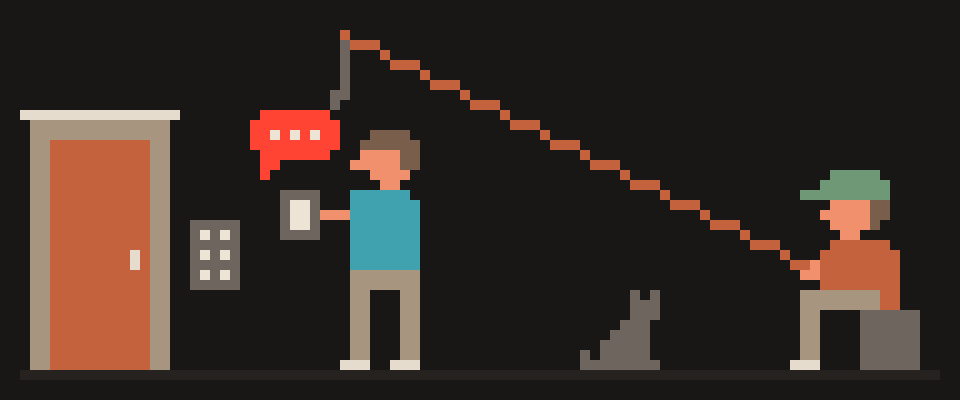
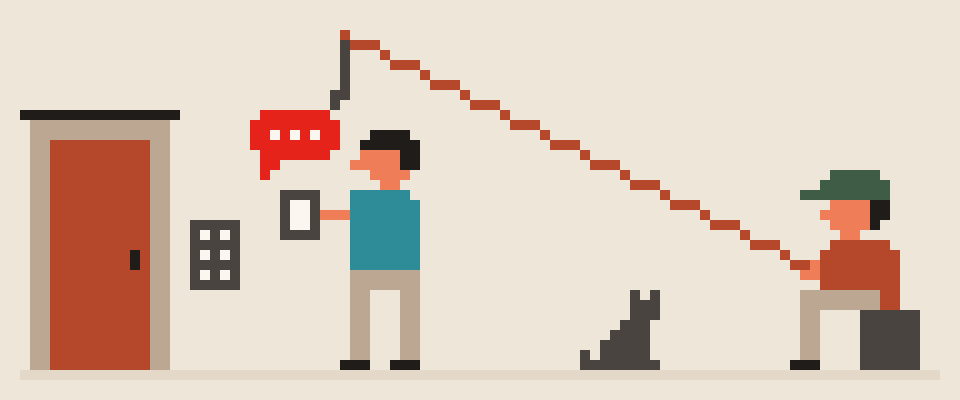
- Only the first five characters of that hash go out. Millions of different passwords share the same five opening characters, so the request can't tell anyone what you were checking.
- The database server sends back every hash tail that starts with those five characters. Usually a few hundred lines.
- Your browser looks for your hash's tail in that list. If it's there, the password is in the database. If not, it isn't in any published breach.
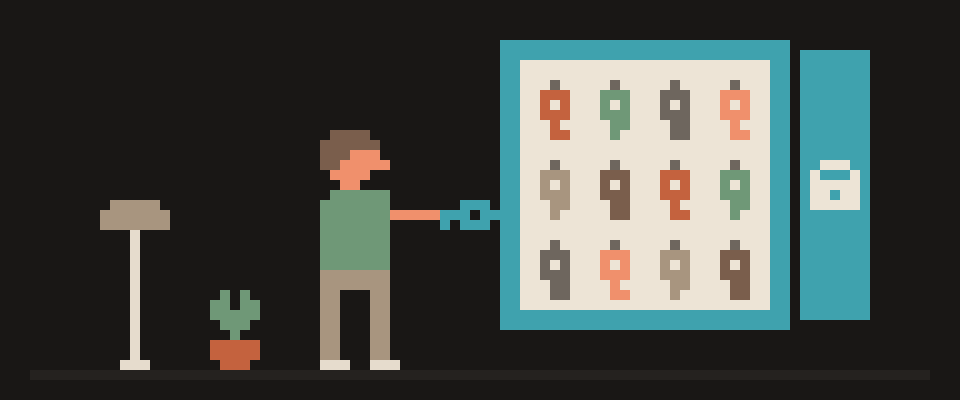
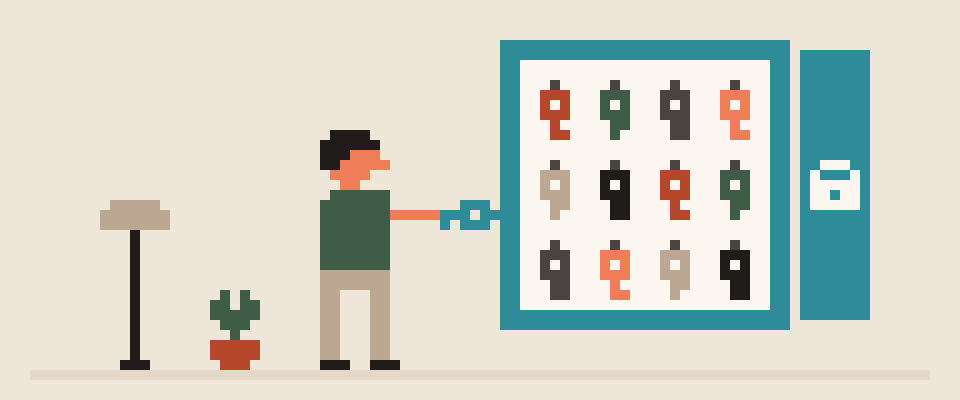
The method is called k-anonymity (you hide in a crowd of hundreds of similar requests), and it's the standard way of querying Have I Been Pwned, the database that's been collecting passwords from known breaches for years. It stores hashes only, with no link to email addresses or names.
You don't have to take that on faith. Open the password leak check, then your browser's developer tools, the Network tab, and type a password. The only request goes to api.pwnedpasswords.com with five characters in the address. Your password isn't in it.
"Not found" and "Seen N times": what the result means
"Not found." This password isn't in any published breach. That's not a guarantee nobody stole it anywhere: the database only knows about breaches that were reported. A fresh leak that hasn't been published yet isn't in there. But "not found" plus a long, unique password is a pretty good place to be.
"Seen 12,000 times." The number is how many records with that password showed up across all the breaches. It doesn't mean you were hacked 12,000 times. It means twelve thousand other people came up with the same password, and it's been sitting near the top of the cracking wordlists for years. That password gets guessed in seconds on any site where it's used, no matter where it originally leaked from.
not found        not in known breaches
seen 1–10 times  already in wordlists
seen thousands   guessed in seconds
   └─ it's not "how many times you
      got hacked", it's "how many
      people picked this one"
Password leaked? What to change, in what order
Order matters more than speed. Don't change everything in a panic; lock down the expensive stuff first.
- Email. Everything else gets reset through it. New password, long, nothing like the old one.
- Bank and payment apps. Wherever the money is.
- Government portals and anything holding your ID documents.
- Every site where you used the same password. And here's the real problem: remembering where else you used it is nearly impossible. That's exactly why one password across several sites is dangerous: one leak opens all of them.
- Two-factor authentication on email and bank. Even if the password leaks again, it's useless without the second factor. Which kind to pick is in two-factor authentication: SMS vs app vs key.
Don't make up the new password in your head: whatever a human invents is almost always already in a wordlist. The password generator makes a long random one, and you don't need to memorize it, that's what a manager is for.
A password manager: stop checking every month
Checking for leaks treats the symptom. The cause is that passwords get reused and invented by hand. If every site has its own random password, a leak from any one of them hits one account, and there's nothing left to check.
That's exactly what a password manager does: generates, stores, fills in, and, most important, refuses to fill in on a fake site with a lookalike address. Choosing between the one built into your browser, a cloud one and a local one is covered in password manager: why and how to choose.
Honestly, here's what I'd do: check the three passwords on my email, my bank and my government login. Any of them turns up, it gets changed today. The rest I wouldn't check one by one. I'd move them into a manager in one evening so I never have to think about this again.
[ ] email: new password
[ ] bank: new password
[ ] 2FA on both
[ ] everything else into a manager
    └─ one evening, then you're
       done checking
This check doesn't cover your email address
It doesn't check your email address for leaks. Checking by email address means sending the address itself, and that's not anonymous anymore. That check lives on haveibeenpwned.com and works differently.
It can't see leaks nobody has reported yet. And it has no idea whether you're using the same password somewhere else. Only you know that.
One last thing: this has nothing to do with a VPN. A tunnel hides your address from the network, but a password doesn't leak from the network, it leaks from the database of a site where you typed it once. Different threat, different tool.
If the password turned up and you're not sure where to start, hand the situation to an AI.
Help me figure out what to do after a password
leak check.

Result: (not found / seen N times).
Where I use this password: (email / bank /
social / not sure where else).
Two-factor on: (yes / no / don't know).
Password manager: (yes / no).

Tell me what to change first and in what order,
and how to find the sites where I might have
used the same password. Don't just say "change
all your passwords", give me an order.
In short
The leak check is safe: five characters of a hash go out, the password stays with you. "Seen N times" means it's already in the cracking wordlists and gets guessed in seconds anywhere it's used. If it's there: email, bank, government logins, 2FA, in that order. And so you never have to check again, every site gets its own random password from a manager.
What can sites see about you right now?
Press Check and we will show what any site you open can see.
The report arrives once you confirm your email. The check runs in your browser and on our server (for WebRTC the browser contacts a Google STUN server). We keep the result only if you ask for the report.
Get an alert when your service goes down
Our nodes check services around the clock. Pick yours and we will alert you once our check points confirm an outage.
We only write when a service goes down and when it is back. Unsubscribe in one click.
10 phone settings that make it much harder to hack
No apps, no money. The first three are right here, and we will send the rest with menu paths for iPhone and Android.
- Automatic system and app updates
- A 6-digit passcode, not 4 digits or a pattern
- Find my phone and remote erase
+ 7 more with menu paths
The checklist arrives once you confirm your email. Unsubscribe in one click.