If your VPN works on mobile data and fails on Wi-Fi, the problem is almost never the app.
It's the Wi-Fi network: a captive portal you haven't cleared, a firewall that blocks the protocol, a router that mangles large packets, or a DNS setup that hijacks queries. The fixes below are ordered from most to least likely, and each takes a minute or two to try.
In short:
- When a VPN works on mobile data but fails on Wi-Fi, the cause is almost never the app but the network.
- Clear the captive portal first, then switch to a TCP protocol on port 443 such as VLESS if the network blocks UDP.
- If the VPN connects but pages hang, lower the MTU to 1280, then check DNS leak protection and IPv6 inside the tunnel.
bar length: how often it happens

captive portal not cleared  ▇▇▇▇▇▇
network blocks UDP          ▇▇▇▇▇
known protocol filtered     ▇▇▇▇
MTU too large               ▇▇▇
DNS hijacked by the router  ▇▇
    └─ check in this order
First, confirm the pattern
Turn Wi-Fi off, connect on mobile data, open What Is My IP: the VPN shows the server's address. Turn Wi-Fi back on: the VPN fails to connect, connects but nothing loads, or drops after a while. If the VPN fails on mobile data too, the cause is different; check subscription, device clock and app permissions first.
Note which of the three symptoms you have: can't connect, connected but no internet, or keeps dropping. Each points to different causes below.
1. Captive portal not cleared (can't connect)
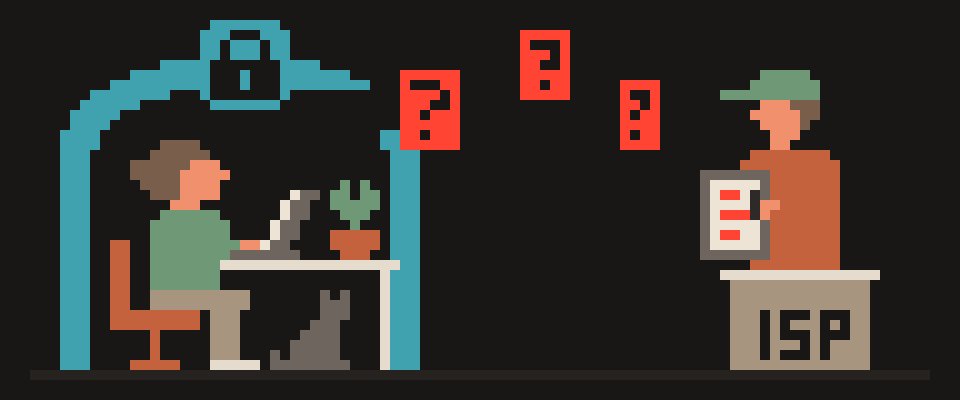
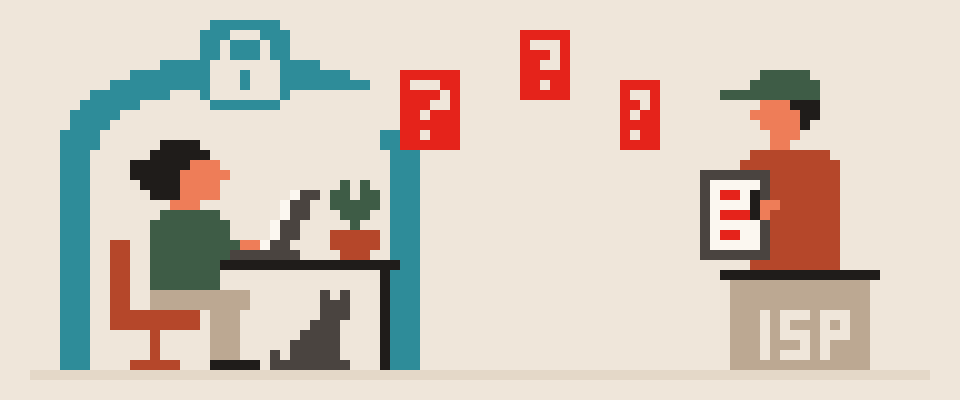
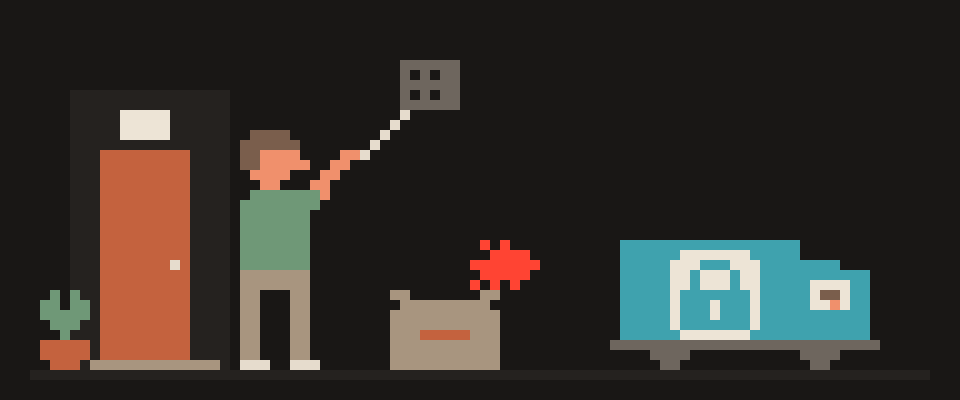
Hotel, airport and coffee shop networks make you accept terms or sign in on a web page before they pass any traffic at all. Your VPN app can't see that page, so it just fails. Fix: open the browser, load any plain site, complete the portal, then connect the VPN. If the portal never appears, forget the network and rejoin it.
fails on every Wi-Fi       device
fails on this Wi-Fi only   network
fails on mobile too        account
worked here yesterday      router
2. The network blocks UDP (can't connect)
WireGuard runs only over UDP, and IKEv2 mostly does too. Corporate, campus and some hotel networks block UDP outright or leave you a handful of ports. Fix: in the app, switch to a protocol that runs over TCP on port 443, which is what web browsing uses and what no network blocks. VLESS does this and looks like ordinary HTTPS. OpenVPN in TCP mode is the older alternative. If the app has an "automatic" protocol setting, turn it on.
3. The network filters known VPN protocols (can't connect or drops)
Some networks go further and recognize VPN handshakes by their shape, then drop or throttle them. You'll get a connection that lives a few seconds and dies, or one that connects and moves almost nothing. Fix: same as above, a protocol designed to be indistinguishable from HTTPS. VLESS with Reality was built for this case; the reasoning is in WireGuard vs OpenVPN.
many tunnels prefer UDP
some networks pass only TCP
  └─ handshake never completes
  └─ client sits on "connecting"
switching transport fixes it
4. MTU too large for the network (connected but pages hang)
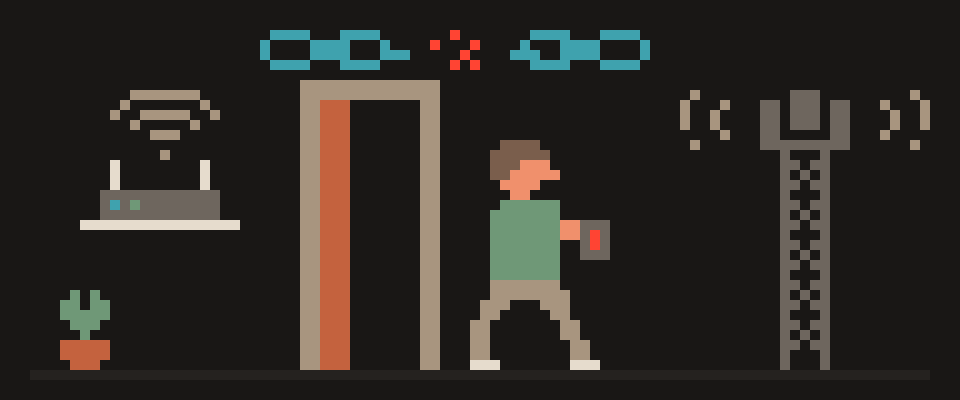
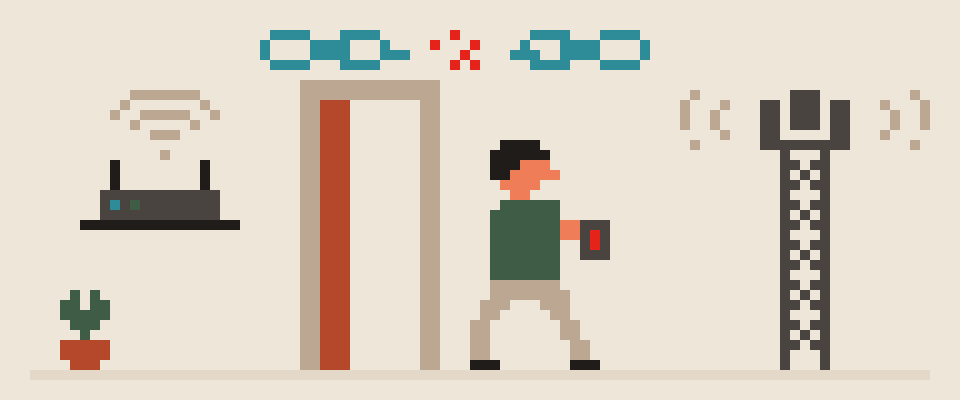
Every tunnel adds a bit of overhead to each packet. On some Wi-Fi networks, especially behind older routers or on satellite and mobile hotspots, packets that were fine on mobile data are suddenly too big. They get fragmented or dropped, and your pages start loading and then just sit there. That's MTU (the size of one chunk of data) biting you. Fix: in the VPN app or the WireGuard configuration, lower the MTU to 1280 and test; raise it in steps if you want to tune. This one is easy to overlook and fixes a lot of "connected but broken" cases.
5. DNS hijacked by the router (connected but nothing resolves)
Some routers grab every DNS (the internet's phone book) query and answer it themselves, which either breaks your VPN's DNS or leaks it. You'll see the tunnel up, What Is My IP shows the server, but sites fail to load or resolve slowly. Fix: turn on the app's DNS leak protection or set the app to use the VPN's own DNS; on Android, set Private DNS to Off or to the VPN's hostname while connected. Verify with the steps in is my DNS leaking.
packet bigger than the path allows
  └─ dropped along the way
      └─ handshake fine, data stalls
symptom: connected, pages hang
half-loaded
6. IPv6 on the Wi-Fi, IPv4-only tunnel (connected, some sites fail)
Your mobile carrier may be IPv4-only while the Wi-Fi hands you IPv6. If your tunnel carries only IPv4, your system tries IPv6 first for a lot of sites, waits, times out, then falls back. Pages crawl or never open, and some of your traffic slips outside the tunnel on the way. Fix: enable IPv6 inside the tunnel if the app supports it, or disable IPv6 on the Wi-Fi connection. The IPv6 leak test shows whether IPv6 is escaping.
7. Wi-Fi power saving on the phone (keeps dropping)
Android and some laptops throttle the Wi-Fi radio once the screen goes off, and long-lived tunnels fall over. Fine while you're using the phone, dead when you pick it up again. Fix: on Android, set the VPN app's battery setting to Unrestricted and enable Always-on VPN with Block connections without VPN; on Windows laptops, disable the "allow the computer to turn off this device" option on the Wi-Fi adapter.
8. A second VPN, firewall or antivirus on the device (can't connect)
Only one VPN configuration can be active at a time on iOS and Android, and desktop security suites sometimes block the tunnel's port on Wi-Fi networks they classify as public. Fix: disable other VPN or filtering apps, and on Windows or macOS temporarily disable the third-party firewall to confirm; if that fixes it, add the VPN app to its exceptions.
every device fails on this network
a phone hotspot works fine
it started after a firmware update
   └─ then nothing on your device
      will fix it
9. The router itself (everything else failed)
Older routers with SIP ALG or aggressive NAT (address swapping at the edge of a network) settings break tunnels for sport. If it's your own router, reboot it, update the firmware (the software inside your router), turn off SIP ALG, and either enable UPnP or leave the NAT defaults alone. If it's somebody else's network, switch to a TCP-based protocol and live with the network's limits.
1  clear the captive portal
2  switch transport to TCP
3  lower MTU to 1280
4  turn off private DNS
5  try the phone hotspot
The difference between networks narrows the cause to two or three candidates.
Help me work out why my tunnel fails on one
network but not another.

Works on: (Wi-Fi / mobile data).
Fails on: (mobile data / Wi-Fi / one specific
network).
Carrier or ISP: (which).
Address on the failing network: (IPv4 / IPv6 /
not sure).
Protocol: (WireGuard / VLESS / other).
Already tried: (list it).

Say which cause is most likely with this pattern
and in what order to check the rest.
If this is not enough to tell, say what else to
look at.
If it does connect but takes far longer than a few seconds, that is a different symptom with its own causes: how long a VPN takes to connect.
VPN not working on Wi-Fi: fixes in order
- Clear the captive portal.
- Switch protocol to VLESS or OpenVPN TCP 443.
- Lower MTU to 1280.
- Turn on DNS leak protection; check Private DNS on Android.
- Fix IPv6: inside the tunnel or off.
- Battery and power settings for the app and the Wi-Fi adapter.
- Disable other VPNs, filters, firewalls.
- Router: reboot, firmware, SIP ALG.
- Try another server. If every one of them fails on this Wi-Fi and every one works on mobile data, the network is the wall, and a TCP protocol is how you get over it.
404 VPN's apps run VLESS, so a network that blocks UDP or filters VPN traffic usually connects on the first try, with DNS inside the tunnel and, on Android, a kill switch during reconnects. The dashboard also gives WireGuard configs for Istanbul and Marseille, but WireGuard is UDP-only, so on a network like that, use the app. Details on the how it works page; get started here.
What can sites see about you right now?
Press Check and we will show what any site you open can see.
The report arrives once you confirm your email. The check runs in your browser and on our server (for WebRTC the browser contacts a Google STUN server). We keep the result only if you ask for the report.
Get an alert when your service goes down
Our nodes check services around the clock. Pick yours and we will alert you once our check points confirm an outage.
We only write when a service goes down and when it is back. Unsubscribe in one click.
10 phone settings that make it much harder to hack
No apps, no money. The first three are right here, and we will send the rest with menu paths for iPhone and Android.
- Automatic system and app updates
- A 6-digit passcode, not 4 digits or a pattern
- Find my phone and remote erase
+ 7 more with menu paths
The checklist arrives once you confirm your email. Unsubscribe in one click.