
Your DNS is leaking if, while the VPN is connected, the servers that answer your "where is this website" questions belong to your internet provider instead of the VPN.
The connection looks fine, your IP address shows the VPN server, but the list of every domain you open still goes straight to the ISP. It's the most common VPN failure, it's invisible unless you test for it, and it takes about two minutes to check.
In short:
- Run the extended test on dnsleaktest.com or ipleak.net with the VPN on: your ISP's servers in the list mean a leak.
- Common causes are Windows asking all adapters at once, IPv6 outside the tunnel, browser DNS, split tunneling and reconnection gaps.
- Fix it first in the VPN app by turning on DNS leak protection and the kill switch, then re-test after every update.
[1] connect the VPN
[2] open the DNS leak test
[3] servers of your ISP?  leak
[4] servers of the VPN?   clean
    └─ repeat after every OS update
the address check can pass
while names still leak
   └─ two different mechanisms,
      two different pages to open
DNS leak test: two minutes
- Connect the VPN and confirm it's on: open the What Is My IP page and check that the address and country belong to the VPN server.
- Open a DNS leak test site such as dnsleaktest.com or ipleak.net and run the extended test. The page makes your browser resolve a few dozen random hostnames and lists which DNS servers did the work.
- Read the list. If every server is in the VPN server's country and belongs to the VPN provider or a public resolver, you're fine. If you see your ISP's name, your home city, or a server in your own country while the VPN is elsewhere, DNS is leaking.
- Run the IPv6 leak test too. If it finds a local IPv6 address, more than DNS is leaking: the whole IPv6 path is outside the tunnel.
- Finish with the WebRTC leak test. This is a separate browser leak, not a DNS one, but you want it clean for the same reason.
Do the test on the network you actually use: home Wi-Fi, mobile data, and the office network can behave differently.
1  connect the tunnel
2  open a DNS leak test
3  read the resolver it reports
   ├─ tunnel resolver → clean
   ├─ your ISP        → leaking
   └─ both listed     → partly leaking
What a DNS leak exposes
The content of HTTPS pages stays encrypted whether DNS leaks or not. What leaks is the map of where you go: every domain, with a timestamp, tied to your real IP address. For an ISP that is a browsing history. For a coffee-shop network it's the same thing, visible to whoever runs the router. It also lets a website that logs DNS queries correlate the VPN's IP with your real one, which defeats the point of using a VPN.
the list of sites you open   yes
the timing of each visit     yes
page content                 no
   └─ your address changed and the
      list of names did not
Why DNS leaks happen
Windows asks everyone at once. Windows has a feature called smart multi-homed name resolution: it sends DNS queries over all network adapters in parallel and takes the fastest answer. With a VPN that means the query goes into the tunnel and to the ISP at the same time, and the ISP is often faster.
IPv6 goes around the tunnel. Many VPN apps only carry IPv4. If your network provides IPv6, the system happily uses it for DNS and for connections, outside the tunnel.
The browser has its own DNS. Chrome, Firefox and Edge can send DNS over HTTPS to a resolver of their choice. That hides queries from the ISP, but the request still leaves from your real IP, so the resolver knows who you are.
Split tunneling or per-app routing. If DNS traffic isn't explicitly included in the tunnel, it takes the default route.
Transparent DNS proxies. Some ISPs intercept every packet on port 53 and answer it themselves, no matter which server you asked. Only encrypted DNS or a tunnel gets past that.
The moment of reconnection. Every time the tunnel drops and reconnects, there are a few seconds when the system falls back to the ISP's DNS. Only a kill switch prevents this.
system resolver set by hand
private DNS set on Android
IPv6 resolver outside the tunnel
split tunneling excluding a browser
client without its own resolver
hand-set resolver   point at VPN's resolver
Android private DNS off, or the hostname
IPv6 resolver       tunnel with IPv6, or off
split tunneling     take the browser out
How to fix a DNS leak
Start in the VPN app. Look for a DNS leak protection setting, or an option to use the VPN's own DNS servers, and turn it on. Turn on the kill switch while you're there. Most leaks end here.
Windows. In the network adapter settings for your normal connection, set the DNS servers manually to the VPN's resolvers or a public encrypted resolver, so the fallback path no longer points at the ISP. If you're comfortable with advanced settings, disable smart multi-homed name resolution through the group policy editor under Computer Configuration → Administrative Templates → Network → DNS Client. Also uncheck "Internet Protocol Version 6" on the adapter unless your VPN supports IPv6.
macOS. In System Settings → Network, select your connection, open DNS, and put the VPN's resolver first. Under TCP/IP, set Configure IPv6 to Link-local only. Then reconnect the VPN.
iPhone and iPad. The VPN app's configuration profile handles DNS; make sure the app's DNS protection is on. If you use a DNS profile from another provider, remove it while the VPN is active, otherwise the two fight over the setting.
Android. Settings → Network & internet → Private DNS. Set it to Off or to the VPN's own hostname while using the VPN, because a third-party Private DNS hostname sends queries outside the tunnel. In the VPN's per-app settings, enable Always-on VPN and Block connections without VPN.
Router. If the VPN runs on the router, set the router's DNS to the VPN provider's resolvers and disable IPv6 on the WAN side unless the tunnel supports it.
Browser. Either turn off the browser's secure DNS setting and let the VPN handle it, or make sure that setting points to a resolver reached through the tunnel. Don't run both in different directions.
DNS     names asked outside tunnel
WebRTC  browser volunteers your IP
IPv6    part of traffic goes direct
   └─ in all three the client still
      says "connected"
If the test output is ambiguous, hand it over with your setup attached.
Help me read a DNS leak test result.

What the test shows: IP address (which),
country (which), DNS servers (list what is
shown), WebRTC (an address, or nothing).
Tunnel: on. App: (name). Browser: (which).

Tell me what here is a leak and what is normal
behavior, and what to fix first.
If the data is not enough to decide, say so and
name what else to check.
Re-test for DNS leaks after updates
Run the extended test again after every fix. Then get into the habit of re-running it after the app updates, after the operating system upgrades, and whenever you join a new network. DNS behavior changes quietly, and the only way to know is to look.
A last check that is easy to forget: disconnect the VPN, run the test again, and make sure you're not accidentally using an old manual DNS entry that keeps pointing at a VPN server you no longer use. That would break browsing rather than leak anything, but it's confusing to debug later.
404 VPN's apps route DNS through the VLESS tunnel by default and include DNS leak protection, and the Android app has a kill switch that blocks traffic while the tunnel reconnects instead of letting it fall back to the ISP. The WireGuard configs from the dashboard (Istanbul and Marseille) also keep DNS inside the tunnel, on 1.1.1.1 and 9.9.9.9, and send all IPv4 and IPv6 traffic through it. You can read more on the security page, or get started and run the tests above on your own connection.
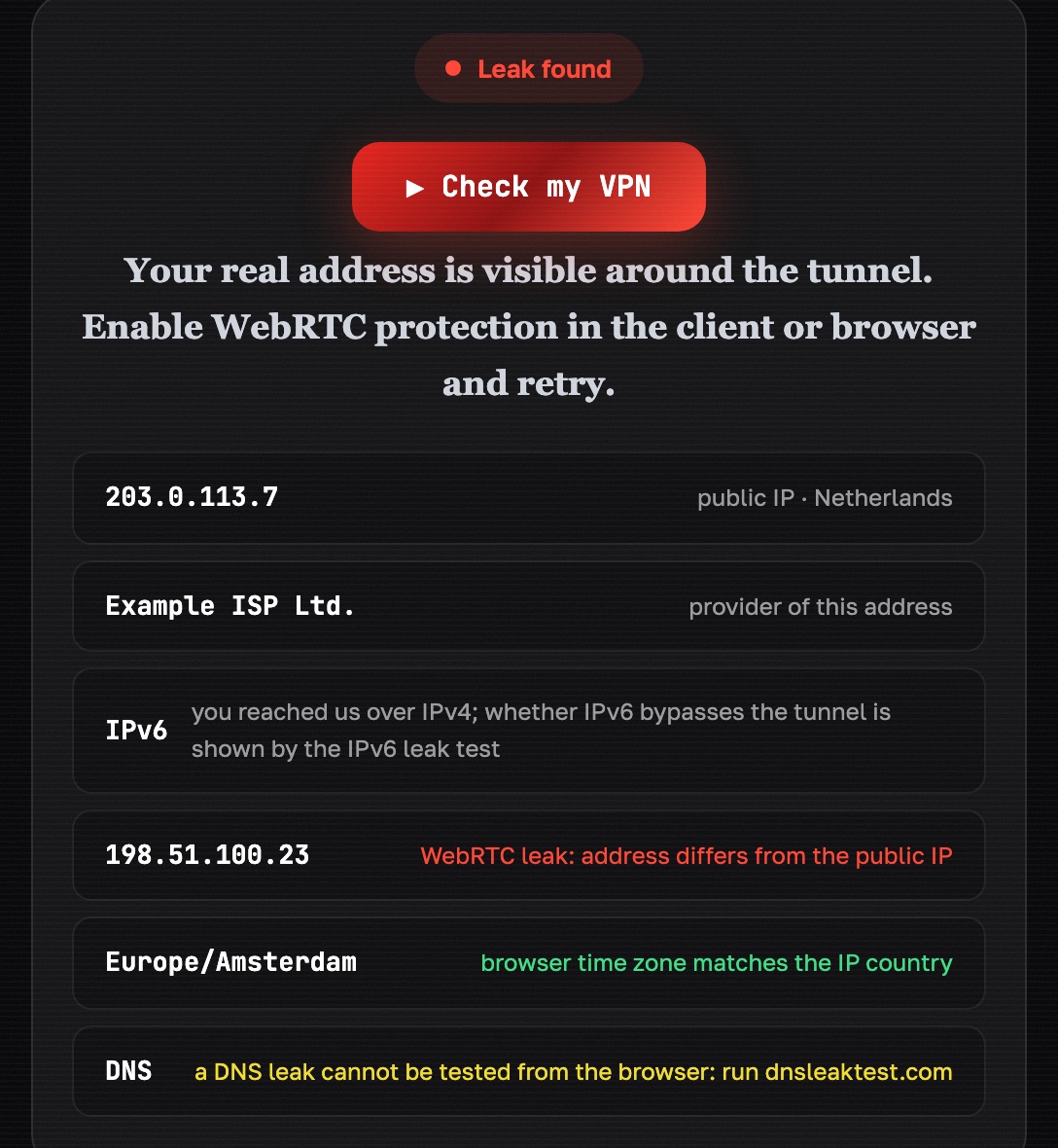
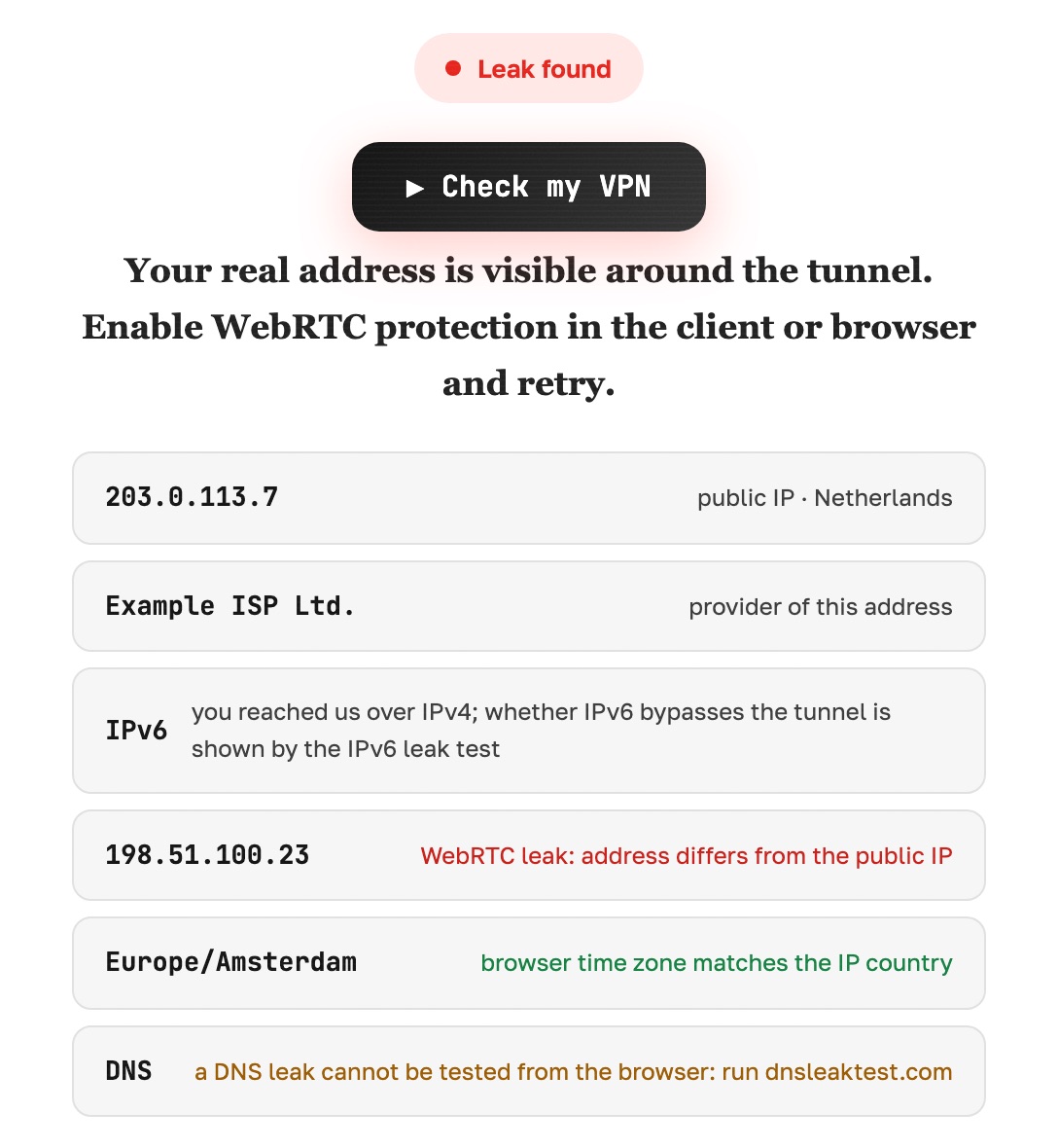
What can sites see about you right now?
Press Check and we will show what any site you open can see.
The report arrives once you confirm your email. The check runs in your browser and on our server (for WebRTC the browser contacts a Google STUN server). We keep the result only if you ask for the report.
Get an alert when your service goes down
Our nodes check services around the clock. Pick yours and we will alert you once our check points confirm an outage.
We only write when a service goes down and when it is back. Unsubscribe in one click.
10 phone settings that make it much harder to hack
No apps, no money. The first three are right here, and we will send the rest with menu paths for iPhone and Android.
- Automatic system and app updates
- A 6-digit passcode, not 4 digits or a pattern
- Find my phone and remote erase
+ 7 more with menu paths
The checklist arrives once you confirm your email. Unsubscribe in one click.