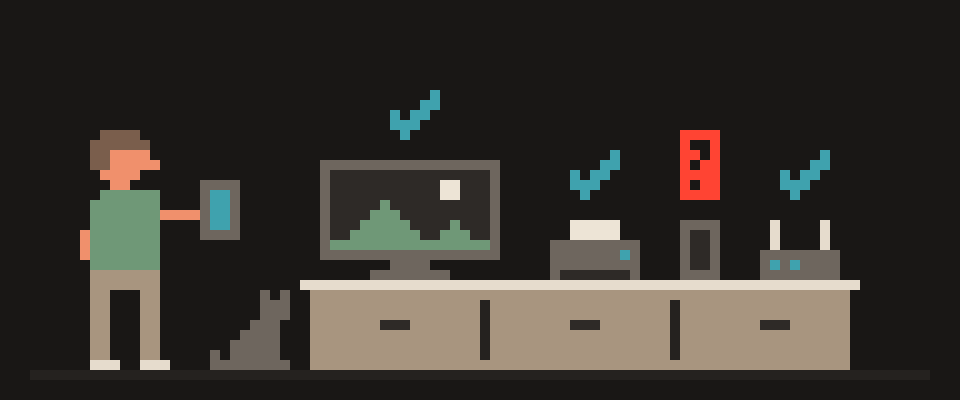
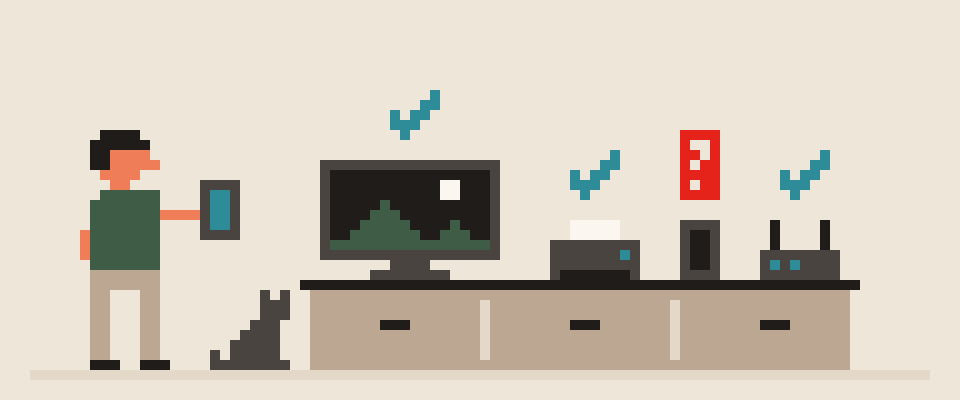
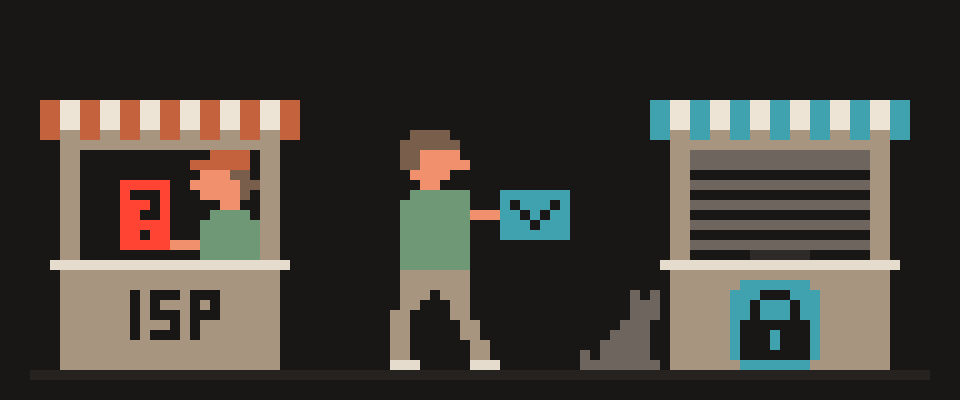
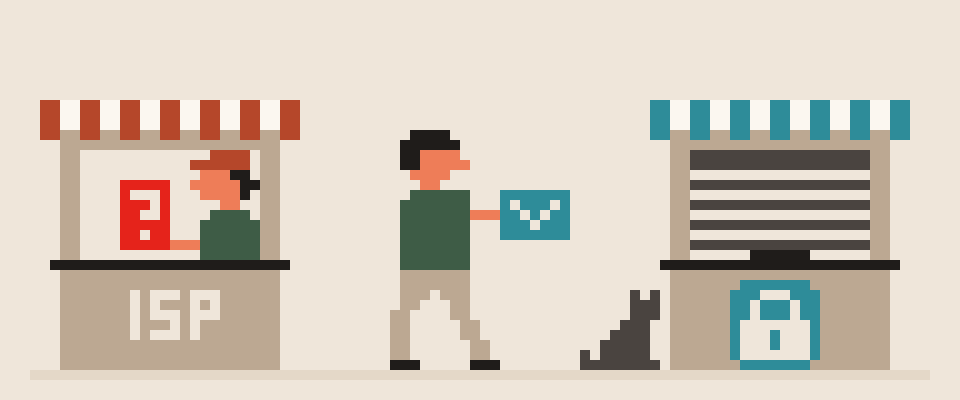
Securing a home Wi-Fi network comes down to ten router settings, and most of them take fifteen minutes once: change the admin password, turn on WPA3 or at least WPA2 with a long passphrase, disable WPS and UPnP, move smart devices onto a guest network, update the firmware.
None of them requires new hardware. Here's what to do and why, in order of importance.
In short:
- Change the router's admin password first, because the factory default lets anyone on your network reconfigure it.
- Use WPA3 or WPA2-AES with a passphrase of 12 or more characters, and turn off WPS and UPnP.
- Put smart devices on an isolated guest network and keep firmware updated, but hiding the network name protects nothing.
[ ] change the admin password
[ ] WPA3, or WPA2-AES
[ ] turn off WPS
[ ] turn off UPnP
[ ] guest network for smart devices
[ ] update the firmware
[ ] turn off remote management
[ ] change the router's DNS
[ ] check who is connected
    └─ hiding the network name does not help
1. Change the router's admin password
Your Wi-Fi password and your router's admin password are two different things. The second one is usually still the factory default (admin/admin, or printed on the sticker), which means anyone who gets on your network can walk into the router and reconfigure it: change DNS, open ports, intercept traffic. Open the admin page (usually 192.168.0.1 or 192.168.1.1), find System or Administration, and set a long password; the password generator will make one.
router admin password     ||||||||||
WPA3 or WPA2-AES          ||||||||
firmware updates          |||||||
disable WPS               ||||||
guest network             |||||
hiding the network name   |
2. WPA3 if supported, otherwise WPA2-AES
In your wireless settings pick WPA3, or mixed WPA2/WPA3. On an older router, WPA2 with AES (CCMP). Stay away from WEP and WPA-TKIP, both of which break in minutes. Make your Wi-Fi passphrase 12 characters or more; a phrase of several words is easier to remember than a string of symbols.
3. Disable WPS
WPS (that "connect with one button" feature, or the eight-digit PIN) is a known hole: the PIN gets brute-forced in hours. Turn WPS off in your wireless settings and add devices with the passphrase like a normal person.
4. Disable UPnP
UPnP lets any app on the network open ports on the router to the outside without asking you. Convenient for game consoles, dangerous for everything else: a compromised gadget opens itself a door from the internet. Turn it off; if a console or service needs a port, open it manually.
an eight-digit PIN
  └─ verified in two halves
      └─ which makes guessing short
a button you use once, exposed
for the life of the router
5. A guest network for smart devices and guests
TVs, robot vacuums, bulbs, cameras and speakers are rarely updated and often vulnerable. Create a guest network with client isolation and put every smart device and every guest on it. Then a hacked bulb can't see your laptop. Keep the main network for phones and computers.
6. Update the firmware
Router vulnerabilities turn up constantly, and manufacturers fix them in updates that nobody installs. Look for Update in your admin page. A lot of models have automatic updates, so turn that on and forget about it. If your router is more than five years old and no longer gets updates, this is the one item where replacing it is worth considering.
7. Turn off remote management
"Manage from the internet," "cloud access," "remote administration": turn them off unless you use them. The admin page shouldn't be reachable from outside.
8. Change the router's DNS
By default the router hands out the ISP's DNS. Set a public resolver, and an encrypted one if the router supports it. Why, and which to pick, is in what is DNS.
main      phones and laptops
guest     other people's devices
IoT       bulbs, plugs, cameras
   └─ a light bulb has no business
      seeing your NAS
9. Check who's connected
Your admin page lists clients: device names, addresses, MAC addresses (the hardware serial of a network card). A device you don't recognize is reason enough to change the Wi-Fi password and turn on filtering. How to read the list and what to do about strangers is in who's on my Wi-Fi.
hiding the network name
  └─ trivially discovered anyway
filtering by MAC address
  └─ trivially spoofed
both cost you convenience for
nothing
10. Hide the network? No. MAC filtering? Optional
Hiding the network name (SSID) doesn't protect anything: devices broadcast it anyway, and it just makes your life harder. MAC filtering is weak (addresses can be faked) but keeps casual neighbors out; enable it if you don't mind maintaining the list.
what you do on websites
your logged-in accounts
trackers in your browser
phishing in your mail
   └─ it secures a network,
      not a person
Every manufacturer names these differently. Ask about your model.
Help me walk through my router's security
settings.

Router: (make and model). Firmware: (stock, or
which).
What I want to do: change the admin password,
switch to WPA3 or WPA2-AES, disable WPS and UPnP,
set up a guest network, update the firmware,
turn off remote management.

For each item, say what it is called in my
firmware and where to find it.
If my firmware has no such setting, say so.
Warn me which change disconnects every device so
I know to reconnect them.
What the router doesn't protect
Even a perfectly configured router encrypts only the stretch between your device and itself. From there, traffic goes to the ISP as is: the ISP sees site names, DNS queries and volume. What exactly is in what can my ISP see. To cover the whole house at once, a VPN goes on the router itself or on a second router behind it; the trade-offs are in VPN on router vs on each device.
Home Wi-Fi security checklist
- Admin password changed, long.
- WPA3 or WPA2-AES, Wi-Fi passphrase 12+ characters.
- WPS off, UPnP off.
- Guest network with isolation for smart devices.
- Firmware updated, auto-update on.
- Remote management off.
- DNS set to a public resolver.
- Client list reviewed.
404 VPN gives you a key from your account that you can load into a router that supports it, plus apps for Android and macOS with a kill switch if the tunnel drops; the other platforms are still in progress. Details on the security page; get started here.
What can sites see about you right now?
Press Check and we will show what any site you open can see.
The report arrives once you confirm your email. The check runs in your browser and on our server (for WebRTC the browser contacts a Google STUN server). We keep the result only if you ask for the report.
Get an alert when your service goes down
Our nodes check services around the clock. Pick yours and we will alert you once our check points confirm an outage.
We only write when a service goes down and when it is back. Unsubscribe in one click.
10 phone settings that make it much harder to hack
No apps, no money. The first three are right here, and we will send the rest with menu paths for iPhone and Android.
- Automatic system and app updates
- A 6-digit passcode, not 4 digits or a pattern
- Find my phone and remote erase
+ 7 more with menu paths
The checklist arrives once you confirm your email. Unsubscribe in one click.