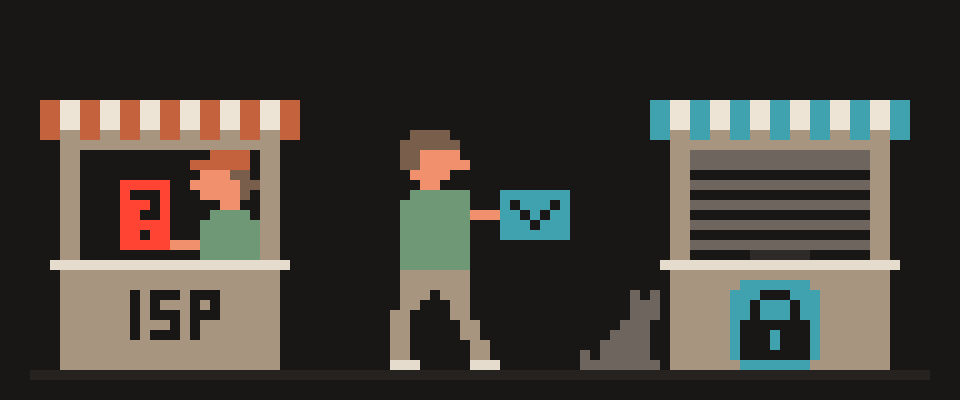
HTTPS is HTTP over TLS encryption: data between your browser and the site can't be read or altered in transit, and the site proves it controls the domain in the address bar.
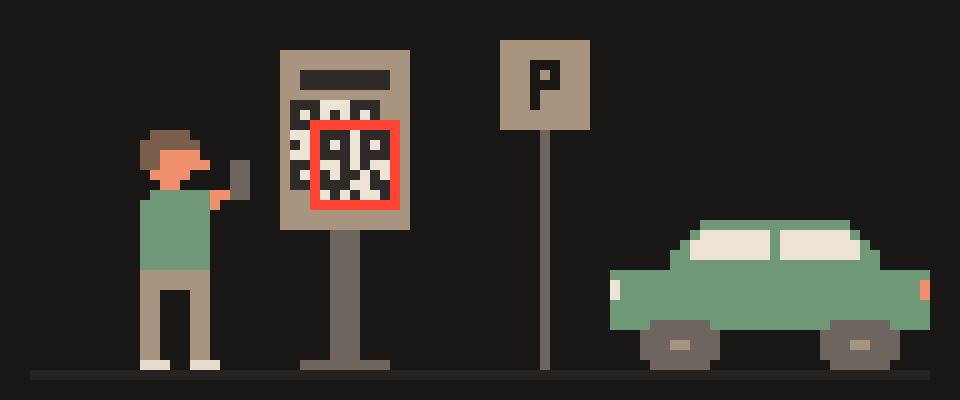
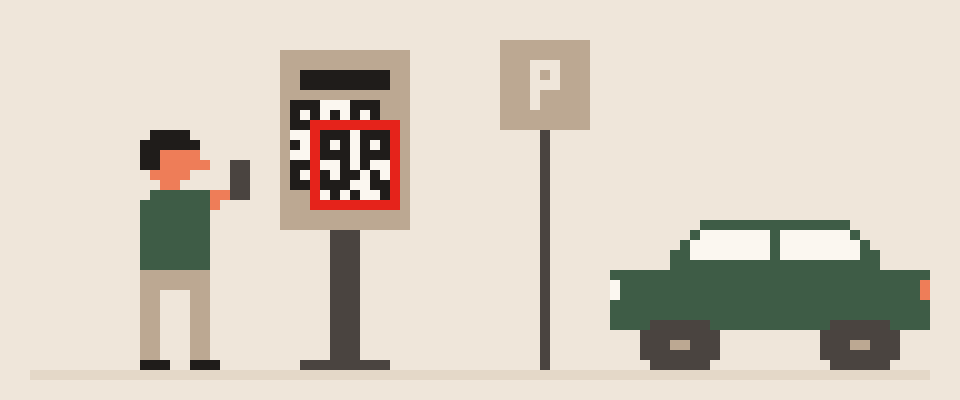
The padlock says exactly that and nothing more. It doesn't say the site is honest, safe or who it claims to be: phishing pages almost always have HTTPS, because a certificate takes a minute and costs nothing. Knowing what the padlock guarantees and what it doesn't is more useful than just looking for it. The domain is also exactly what a short link or a QR code hides from you until it's too late; how to see it ahead of time is in how to check a link or QR code before you open it.
connection encrypted      ✓
site owns the domain      ✓
site is honest            ✗
site is not phishing      ✗
ISP cannot see the domain ✗
    └─ phishing pages have HTTPS too
What happens in an HTTPS connection
- Your browser connects to the server and asks to start TLS (the padlock in your address bar).
- The server sends a certificate: a document in which a certificate authority vouches that this key belongs to this domain.
- Your browser checks the authority's signature, the expiry date, and that the domain actually matches.
- The two sides agree on a session key, and everything after that is encrypted.
The current version is TLS 1.3: one fast handshake, and only strong algorithms on the menu.
browser asks for the certificate
  ├─ issued by a known authority?
  ├─ issued for this domain?
  └─ still valid?
then both sides agree on keys
What HTTPS protects
- Content: pages, forms, passwords, card numbers, messages. Your ISP, the coffee shop Wi-Fi and anyone in between see only an encrypted stream.
- Integrity: nobody along the way can slip an ad, a script or a swapped link into the page you asked for.
- Domain authenticity: you're talking to whoever controls the domain in the address bar, not to someone who intercepted the connection.
content and passwords      sealed
tampering along the way    detected
site you are visiting      exposed
that you visited at all    exposed
What HTTPS doesn't protect
- The site's honesty.
yourbank-secure-login.comwith a padlock isn't your bank. The padlock confirms the domain, not the intent. Read the address, not the icon. - The site's name from your ISP. The domain travels in plain text in the DNS query and in the SNI field at the start of the connection. The ISP knows what you opened, not what was inside. Details in what can my ISP see.
- Your IP address. The site sees it; HTTPS has nothing to do with that.
- Your data inside the site. What the site does with what you submit is a policy matter.
- Your device. Malware on the phone reads everything before it's encrypted.
"this site is honest"      no
"you will not be scammed"  no
"the owner was vetted"     no
   └─ it means the connection is
      encrypted and the domain
      is the one you asked for
What "Not secure" and the padlock icons mean
- Padlock, or the neutral "tune" icon in recent Chrome: encrypted, certificate valid.
- "Not secure": plain HTTP. Don't type anything into that page that you'd mind losing.
- A red certificate warning: expired, issued for a different domain, or signed by somebody your browser doesn't trust. On a network that isn't yours, that can mean interception. Don't click through, especially for banks and email.
- Click the padlock: it tells you who the certificate was issued to, and by whom. On your bank's site you want to see the bank's name or a known authority, not a blank.
How to turn on HTTPS-only mode
You can tell your browser to refuse the unencrypted version of a site outright. Chrome: Settings → Privacy and security → Security → "Always use secure connections". Firefox: Settings → Privacy & Security → "HTTPS-Only Mode". Turn it on; it closes the rare but painful cases where a link leads to http://.
your content             protected
which sites you visit    visible
a certificate warning    never ignore it
Is HTTPS enough on public Wi-Fi?
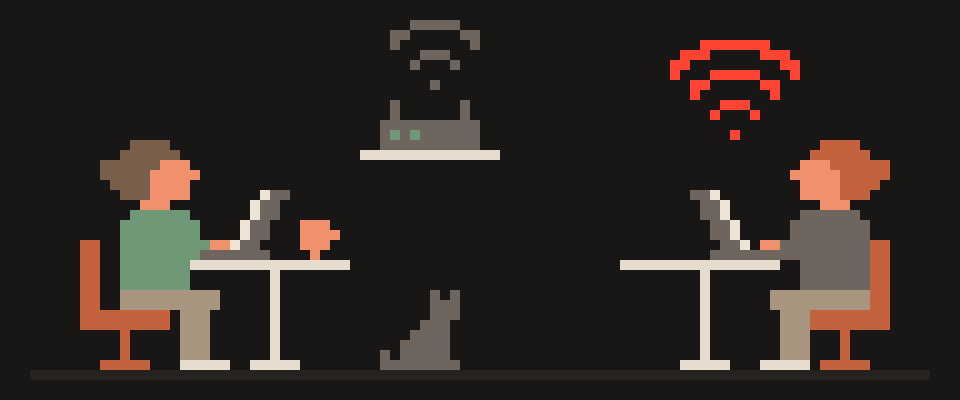
In a coffee shop, HTTPS does the heavy lifting: your content is unreadable. Three gaps are left: your DNS (the internet's phone book) queries, the network's login page, which is often plain HTTP, and apps that are less strict than your browser. What to do about them is in is public Wi-Fi safe.
HTTPS   hides the content from
        everyone on the path
tunnel  hides who you are talking
        to from your ISP
   └─ neither replaces the other
HTTPS and VPN: layers, not substitutes
HTTPS encrypts content between you and the site. A VPN encrypts all of the device's traffic between you and the VPN server, including DNS and site names, and hides your IP. One without the other leaves gaps: without HTTPS the VPN server could read content; without a VPN the ISP gets the site list. Together they cover nearly everything. The DNS half of that is explained in what is DNS.
A certificate warning is the one browser message you should never click past blindly.
Help me understand a certificate warning.

The warning text: (paste it exactly).
Site: (the domain only).
Browser: (which). Network: (home / work / public
Wi-Fi / hotel).
Have I installed anything recently that added a
certificate: (yes / no / not sure).

Say what this error means, whether it can be
harmless, and in which cases it must never be
bypassed.
Do not tell me to click through if the risk is
real given these answers.
In short
- Padlock = encryption + verified domain. Not = honest site.
- Read the address, not the icon. A certificate warning means you stop.
- Turn on HTTPS-only mode.
- The ISP still sees site names; only a VPN, or encrypted DNS plus ECH where supported, closes that.
404 VPN builds its tunnel with VLESS over TLS 1.3 and carries DNS inside it, so site names aren't visible to the network. Its WireGuard configs for Istanbul and Marseille do the same with WireGuard's own encryption, which isn't TLS. Details on the security page; get started here.
What can sites see about you right now?
Press Check and we will show what any site you open can see.
The report arrives once you confirm your email. The check runs in your browser and on our server (for WebRTC the browser contacts a Google STUN server). We keep the result only if you ask for the report.
Get an alert when your service goes down
Our nodes check services around the clock. Pick yours and we will alert you once our check points confirm an outage.
We only write when a service goes down and when it is back. Unsubscribe in one click.
10 phone settings that make it much harder to hack
No apps, no money. The first three are right here, and we will send the rest with menu paths for iPhone and Android.
- Automatic system and app updates
- A 6-digit passcode, not 4 digits or a pattern
- Find my phone and remote erase
+ 7 more with menu paths
The checklist arrives once you confirm your email. Unsubscribe in one click.